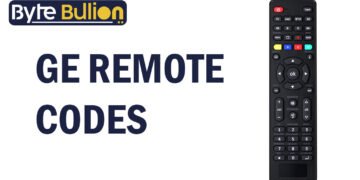



GE remote codes let you pair one universal remote with your TV, DVD player, cable box, or soundbar instead of juggling several remotes. Jasco, the company behind GE remotes, builds each remote with a library of codes that match popular brands like Samsung, LG, Vizio, and Sony. Once you enter the right code, the remote can control power, volume, and channels on that device. This guide explains how to find your remote’s code version, lists common codes by brand, and walks you through both programming methods.
What Are GE Remote Codes?
A GE remote code is a short number, usually three or four digits, that tells the remote which brand and signal pattern to use for a specific device. Every TV, DVD player, and cable box brand sends out its own infrared signal, so the remote needs the matching code to “speak” the right language. Without the correct code, buttons like power or volume simply do nothing.
Jasco groups these codes by remote version, labeled CL3, CL4, CL5, or CL6. Newer remotes tend to use CL5 or CL6, while older models often rely on CL3. Knowing your version narrows down the code list and saves time during setup.
Find Your Remote’s CL Version
Before entering any code, check which version your remote uses. Remove the battery cover and look at the sticker inside the compartment. The label shows CL3, CL4, CL5, or CL6, along with the model number.
This step matters because codes are not always shared across versions. A code that works on a CL3 remote may not work on a CL6 model for the same brand. If the sticker is worn out or missing, try the auto code search method described later in this guide, since it does not require you to know the version at all.
GE Remote Codes List by Brand
Below are commonly used four-digit codes for popular brands. If the first code does not work, try the next one listed for that brand.
- Samsung: 1101, 0031, 0051, 0561, 0691
- LG: 0006, 0009, 1097, 1361
- Vizio: 1281, 2101, 3211
- Sony: 0071, 0037, 1341
- Insignia: 2891, 0371, 2271, 0141
- General Electric (GE): 0001, 0041, 0051, 0261, 1221
These codes come from Jasco’s published code libraries and cover most standard TVs sold in the United States. For less common brands or newer smart TVs, check the full list included in your remote’s manual or on Jasco’s official support site.
How to Program GE Remote Codes (Direct Entry)
Direct code entry works best when you already know the code for your device. Start by turning on the TV or device you want to control. Then press and hold the Setup button on the remote until the red light turns on and stays lit.
Next, press the button for the device type, such as TV, DVD, or AUX. Enter the four-digit code using the number pad. The red light should turn off, confirming the remote accepted the code. Point the remote at the device and test the power and volume buttons. If nothing happens, repeat the process using the next code from the list for your brand.
How to Use Auto Code Search (No Codes Needed)
Auto code search helps when you cannot find a working code or do not know your device’s brand code. This method cycles through every stored code until the remote finds one that works. Turn on the device first, since the search relies on watching for a response.
Press and hold Setup until the red light turns on, then press the device button once. Point the remote at the device and press the Power button repeatedly, pausing a couple of seconds between presses. The remote sends a different code each time. As soon as the device turns off, press Enter or Save to lock in that code. This method takes longer than direct entry, but it works even without a printed code list.
Troubleshooting Common Issues
Partial button response is the most common complaint, and it usually means the wrong CL version code was entered. Try the next code in the same brand row, or double check the sticker inside the battery compartment for the correct version. Weak or old batteries can also cause the remote to lose its programming, so swap in fresh batteries before trying again.
If the remote will not enter setup mode at all, hold the Setup button a bit longer, since some models need three to five seconds before the light appears. For devices that use Wi-Fi instead of infrared, such as certain Roku or Fire TV models, standard GE codes will not work because the remote relies on an infrared signal rather than a wireless connection.
Conclusion
Programming a GE universal remote is straightforward once you know your remote’s CL version and have the right code for your device. Whether you use direct code entry or the auto search method, most setups take just a few minutes. Keep the code list handy for future reference, since you may need it again after a battery change or factory reset.
Frequently Asked Questions
What does CL3, CL4, CL5, or CL6 mean on a GE remote?
These labels show which code library the remote uses. Check the sticker inside the battery compartment to find your version before entering any code.
Why does my GE remote only control some functions?
This usually happens when the code only supports partial features. Try another code from the same brand’s list until all buttons work correctly.
Can I program a GE remote without knowing the code?
Yes. Use the auto code search method, which cycles through codes automatically until the device responds to the power button.
Do GE remote codes work with Roku or Fire TV devices?
Only if the device uses infrared signals. Many Roku and Fire TV remotes use Wi-Fi or Bluetooth instead, which standard GE codes cannot control.
How do I reset my GE universal remote?
Hold the Setup button until the light stays on, then press Mute followed by 0. The light will blink twice to confirm the reset is complete.
Find what’s next and explore more at Byte Bullion