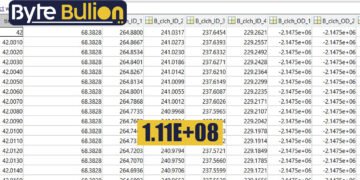



1.11E+08 is what happens when a number like 111,000,000, or a similarly structured value such as a phone number, ID number, or barcode, gets automatically converted into scientific notation by a spreadsheet program like Excel or Google Sheets. If you’ve opened a file and found a long number replaced with this confusing “E+08” format, this guide explains exactly why it happens, what the original number actually was, and how to fix and prevent it going forward.
What 1.11E+08 Actually Means
Scientific notation is a way of writing very large or very small numbers in a compact form, expressing a number as a value multiplied by a power of ten. In this specific case, 1.11E+08 means 1.11 multiplied by 10 to the 8th power, which works out to 111,000,000. The “E+08” portion is shorthand for “times ten to the eighth,” with the “08” indicating how many places the decimal point effectively moves.
This notation is mathematically completely valid and is standard practice in scientific and engineering contexts, where working with extremely large or small numbers in their full, expanded form would be unwieldy. The problem arises when this notation shows up unexpectedly in an everyday spreadsheet, converting what should be a plain, readable number, like a phone number, an ID, or a tracking number, into a format that looks broken or confusing to anyone not expecting it.
Why Spreadsheets Do This Automatically
Excel, Google Sheets, and similar spreadsheet programs apply automatic formatting to numbers based on the width of the column and the number of digits involved. When a cell isn’t wide enough to display a long number in full, or when the number exceeds a certain digit threshold, typically around 11 to 12 digits depending on the specific program and column width, the spreadsheet automatically switches to scientific notation rather than either truncating the number or automatically widening the column.
This behavior exists because spreadsheet programs are fundamentally designed around numeric and mathematical data, where scientific notation is often the more useful, readable format for extremely large calculated values. The software doesn’t inherently know that a specific 9 or 10-digit number you’ve entered is actually meant to be a phone number, an account number, or an identification code rather than a mathematical value meant for calculation, so it applies its default numeric formatting logic uniformly.
Common Real-World Numbers That Trigger This
A number like 1.11E+08, representing 111,000,000, could plausibly correspond to several different kinds of real-world values depending on the context you encountered it in.
A phone number missing its area code formatting. A number like 1110000000 or a similar 9 to 10-digit sequence, if entered as a plain number rather than formatted text, is a classic trigger for this exact issue, since phone numbers are numeric-looking but aren’t meant to be treated as mathematical values.
An account, order, or reference number. Many businesses assign long numeric identifiers to customer accounts, orders, invoices, or tracking numbers, and if these get pasted or imported into a spreadsheet as plain numbers rather than text, the same scientific notation conversion applies.
A barcode or product identification number. UPC codes and similar product identifiers are often long numeric strings that trigger this same automatic reformatting when handled as numbers rather than text within a spreadsheet.
A large calculated or imported data value. Sometimes the number genuinely is meant to be a large numeric value, such as a population count, a financial figure, or a scientific measurement, in which case scientific notation is arguably the intended, appropriate format rather than an error to fix.
How to Convert 1.11E+08 Back to a Normal Number
If you’re looking at 1.11E+08 in a spreadsheet and want to see the original, full number instead, a few straightforward methods will fix it.
Widen the column. Sometimes the simplest fix is also the correct one. If the underlying cell data is fine and the number is only displaying in scientific notation because the column is too narrow, simply dragging the column border wider, or double-clicking the column border to auto-fit, will often reveal the full number without any further changes needed.
Change the cell formatting to “Number.” Select the cell or range of cells, right-click and choose “Format Cells” in Excel or the equivalent menu in Google Sheets, and choose “Number” format instead of “General” or “Scientific.” This forces the spreadsheet to display the value as a plain number rather than applying its automatic notation logic.
Format the cell as “Text” before entering the number, especially for identifiers. For phone numbers, account numbers, and similar values that should never be treated as mathematical data, formatting the cell as Text before typing or pasting the number in prevents the spreadsheet from ever applying numeric formatting logic to it in the first place, since text values are displayed exactly as entered regardless of length.
Use a formula to convert an already-affected number. If a number has already been entered and converted, and reformatting the cell alone doesn’t restore the original digits accurately, you may need to re-enter the original number as text, since simply changing the display format after the fact won’t recover precision that was lost if the original entry process itself altered the underlying value.
For phone numbers specifically, add appropriate formatting. Beyond simply converting back to a plain number, applying a phone number-specific format, through Format Cells and selecting “Special,” then “Phone Number” in Excel, will display the number in a properly formatted, readable style, such as (111) 000-0000, rather than either scientific notation or an unformatted string of digits.
How to Prevent This From Happening Again
A few preventive habits will save you from repeatedly running into this same frustrating issue.
Format columns as Text before entering or pasting identifier-type data. Before you type in or paste phone numbers, account numbers, tracking codes, or any other numeric-looking identifier that should never be used in a calculation, set the destination column’s format to Text first. This is the single most reliable way to prevent scientific notation conversion entirely.
Add a leading apostrophe when typing a number as text in Excel. Typing an apostrophe before a number, like ‘1110000000, tells Excel to treat the entry as text rather than a number, preserving the exact digits as typed without triggering automatic numeric reformatting.
Be cautious when importing or pasting data from external sources. Data copied from a website, a CSV export, or another document can carry its own formatting that interacts unpredictably with your spreadsheet’s default settings, so it’s worth checking how imported data displays immediately after pasting, before you’ve done significant additional work in the file.
Check for scientific notation issues before sharing a file. If you’re preparing a spreadsheet to share with colleagues, clients, or for any official purpose, do a quick scan for any cells displaying in scientific notation, since this kind of formatting error is a common, embarrassing mistake that’s easy to miss if you’re not specifically looking for it.
Why This Matters Beyond Just Appearance
Beyond simply looking confusing, scientific notation conversion can cause real, practical problems if it’s not caught and corrected. If a phone number or account number gets converted and then used elsewhere, copied into another system, printed on a document, or shared with someone who needs to actually use that number, the scientific notation format is not usable as an actual phone number or identifier without manual conversion back to the original digits.
In more serious cases, if the original number had more digits than Excel’s default numeric precision can accurately store, commonly around 15 significant digits, the conversion process can actually alter or truncate the final digits of the number, meaning the data isn’t just displayed differently, it may be genuinely, silently corrupted. This is a particular risk for very long identifier numbers and is a strong argument for always formatting identifier columns as Text from the start, rather than relying on being able to perfectly reverse a numeric conversion after the fact.
Conclusion
1.11E+08 is simply scientific notation for 111,000,000, and it shows up in spreadsheets when a long number gets automatically reformatted by Excel or Google Sheets’ default numeric display logic, usually affecting phone numbers, account numbers, or other identifier-style values that were entered or imported as plain numbers rather than text. Fixing the display is usually straightforward, whether by widening a column, changing the cell format to Number or Text, or applying a specific format like Phone Number for readability. The more important, longer-term fix is prevention: formatting identifier columns as Text before entering data in the first place avoids not just the visual confusion of scientific notation, but the more serious risk of silently losing precision on very long numbers that Excel’s default numeric handling can actually alter.
Frequently Asked Questions
1. What number does 1.11E+08 actually represent?
It represents 111,000,000, written in scientific notation as 1.11 multiplied by 10 to the 8th power.
2. Why did my phone number turn into 1.11E+08 in my spreadsheet?
Spreadsheet programs like Excel automatically convert long numbers to scientific notation when they exceed a certain digit threshold or when the column is too narrow, since the software doesn’t know the number is meant to be an identifier rather than a mathematical value.
3. How do I convert 1.11E+08 back to a normal number in Excel?
Right-click the cell, choose Format Cells, and select Number or Text format instead of General or Scientific, or simply widen the column if the underlying data is unaffected.
4. Can converting to scientific notation actually damage my data?
Yes, in some cases. If a number exceeds Excel’s default precision limit, roughly 15 significant digits, the conversion process can actually alter or truncate the final digits, not just change how the number displays.
5. How can I prevent this from happening in the future?
Format columns as Text before entering or pasting identifier-style numbers like phone numbers or account numbers, or add a leading apostrophe when typing the number directly into Excel.
Find what’s next and explore more at Byte Bullion