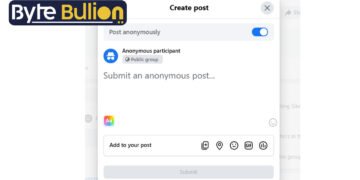



How to post anonymously on Facebook is a question many people ask when they want to share something personal without putting their name on it. Maybe you have a health question, a family issue, or a work concern you want to ask about. You want honest advice, but you do not want your name attached to it. Facebook built a feature just for this situation. This guide explains how it works, how to use it, and what you should know before you try it.
What Anonymous Posting on Facebook Actually Means
Facebook’s anonymous posting feature only works inside groups. You cannot post anonymously on your personal timeline, a business page, or Marketplace. When you use this feature, your name and profile picture stay hidden from other group members. Instead, your post shows up as “Anonymous Member” or “Group Participant.”
This tool was designed for groups where people discuss sensitive topics, such as parenting, health conditions, or mental health support. It gives members a safer way to ask questions or share experiences without fear of judgment from friends, family, or coworkers who might also be in the group.
Before You Start: What You Need
Two things must be true before you can post anonymously. First, the group admin must turn on the anonymous posting option for that group. Second, you must already be an approved member of the group, not just a visitor browsing from outside.
If you open a group and do not see the anonymous posting option, the admin has likely not enabled it. In that case, you can send the admin a message and ask if they are willing to turn it on. There is no way to force this feature to appear if the group settings do not allow it.
How to Post Anonymously on Facebook (Desktop)
Log in to Facebook on your web browser and go to the group where you want to post. Click the “Write something…” box at the top of the group feed, then look for the “Anonymous Post” option below it. Click that option, and a pop-up window will explain how the feature works before you continue.
Click “Create Anonymous Post” to confirm, then type your message. Add photos, polls, or other attachments if you need them. When you are finished, click “Submit.” If the group requires admin approval, your post will wait in a review queue, and you will get a notification once it is approved and published.
How to Post Anonymously on Facebook (Mobile App)
The process on Android and iPhone is nearly identical. Open the Facebook app, tap the menu icon, and select “Groups.” Choose the group you want to post in, then tap the “Write something…” field to start a new post.
Look for the checkbox or toggle labeled “I want to post anonymously” and turn it on. You will see a label at the top of the screen confirming you are posting anonymously. Write your message, add any photos if needed, and tap “Post” in the top right corner to submit it.
What Stays Private and What Does Not
Your name and profile are hidden from regular group members, but they are never hidden from everyone. Group admins and moderators can always see who submitted an anonymous post, since they review it before it goes live. Facebook itself also keeps a record of who posted, which helps the platform enforce its community standards.
Changing your display name will not add extra protection, since admins see your real account either way. Comments also work differently than posts. You can reply anonymously to comments on your own anonymous post, but you cannot comment anonymously on anyone else’s post. Keep this in mind if privacy is your main goal, since anonymous does not mean completely untraceable.
Tips for Using Anonymous Posting Wisely
Avoid including details that could identify you, such as your workplace, exact location, or unique personal stories that friends might recognize. Even without your name, specific details can sometimes give away who wrote a post.
Follow the group’s rules closely, since posting something inappropriate can still get you removed even if your name is hidden from other members. Admins can also disable anonymous posting for the whole group if it gets misused, so use the feature respectfully and only when you genuinely need privacy.
Conclusion
Posting anonymously on Facebook is a simple, built-in way to ask questions or share thoughts without revealing your identity to other group members. It works only in groups where admins have turned it on, and your identity always stays visible to those admins. Use it thoughtfully, and it can be a helpful tool for honest, judgment-free conversations.
Frequently Asked Questions
Can I post anonymously anywhere on Facebook, not just groups?
No. Anonymous posting only works inside Facebook groups. You cannot use it on your personal timeline, a business page, or Marketplace.
Can group admins see who posted anonymously?
Yes. Admins and moderators can always see the identity of anyone who submits an anonymous post, even though other members cannot.
Why don’t I see the anonymous post option in my group?
The group admin has not enabled the feature yet. You can message the admin and ask them to turn it on for the group.
Does changing my Facebook name hide my identity from admins?
No. Admins see your actual account details regardless of what display name you use, so changing your name does not add privacy.
Can I comment anonymously on someone else’s post?
No. You can only comment anonymously on your own anonymous post. Comments on other members’ posts always show your real name.
Find what’s next and explore more at Byte Bullion